IPTV Players
How to Set Up IBO Player Pro
Install IBO Player Pro on Firestick, Smart TV, Android, iOS or Windows, activate it, and add your playlist with the Xtream Codes API — the full walkthrough.
Updated 27 August 2026 · Reviewed by Nexlivo Support Team · 3 min read
IBO Player Pro is a fast, good-looking player that runs on almost everything: Firestick, Samsung and LG Smart TVs, Android, iPhone and iPad, and Windows. Setup has three parts — install, activate, add playlist — and each takes a couple of minutes.
Step 1: Install the app
Pick your device:
| Device | How to install |
|---|---|
| Firestick / Fire TV | Sideload via the Downloader app: enter code 834339, press Go, then Install. (Full sideloading steps in the Firestick tutorial.) |
| Samsung Smart TV | Open Samsung Apps, search IBO Player Pro, install |
| LG Smart TV | Open the LG Content Store, search IBO Player Pro, install |
| Android TV / phone / tablet | Install from Google Play |
| iPhone / iPad | Install from the App Store |
| Windows | Download the installer from the developer's official site and run it |
Install only the genuine app — there are lookalikes with similar names.
Step 2: Note your MAC address and device key
Open the app. The home screen displays a MAC address and a device key — these identify your specific installation and are needed for both activation and playlist management. Keep them visible or jot them down.
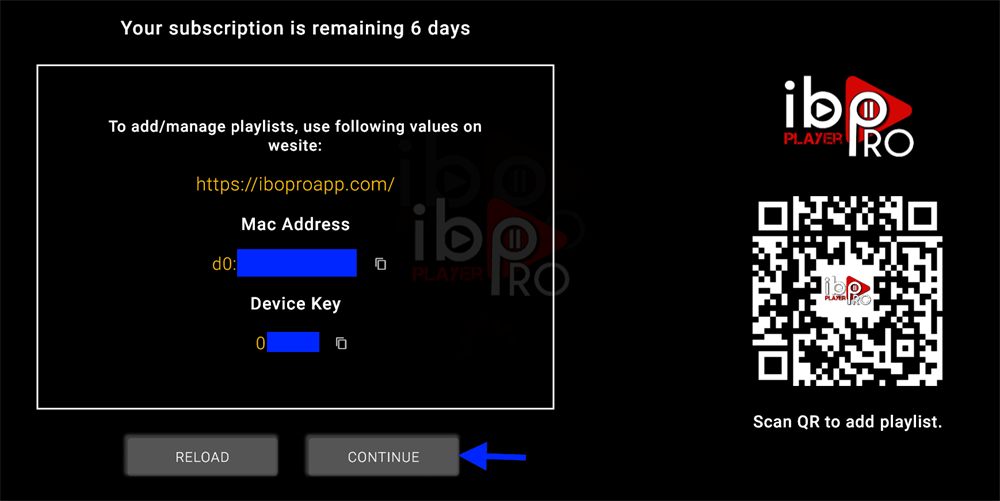
Step 3: Activate the app
IBO Player Pro is developed by an independent company and charges a small one-off activation fee per device after its trial period. This activates the app itself — it is not a Nexlivo subscription, and you need both.
You can buy activation from our plans page: 1 year for £7, or lifetime for £10 (one device each).
Once purchased, send your MAC address and device key to our support team via WhatsApp, live chat or email and we'll get the app activated and your playlist attached in one go.
Step 4: Add your playlist
Once activated:
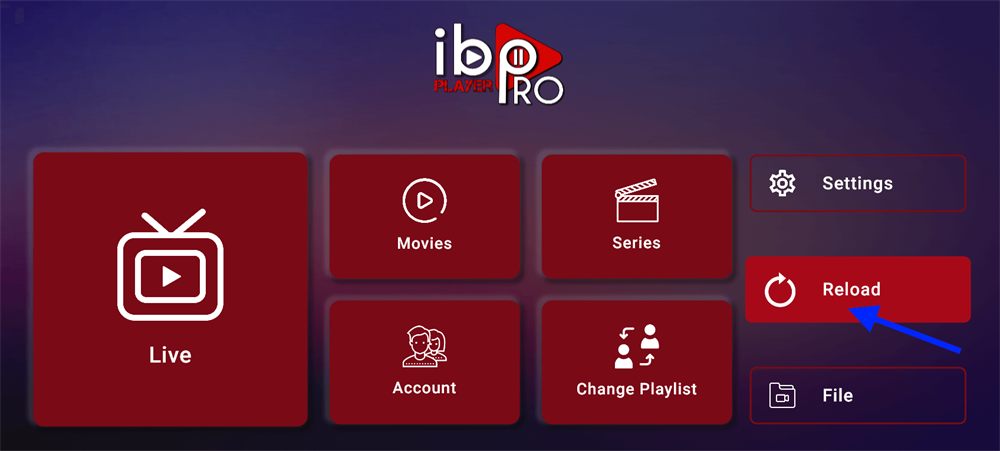
- On the app's home screen choose Change Playlist.
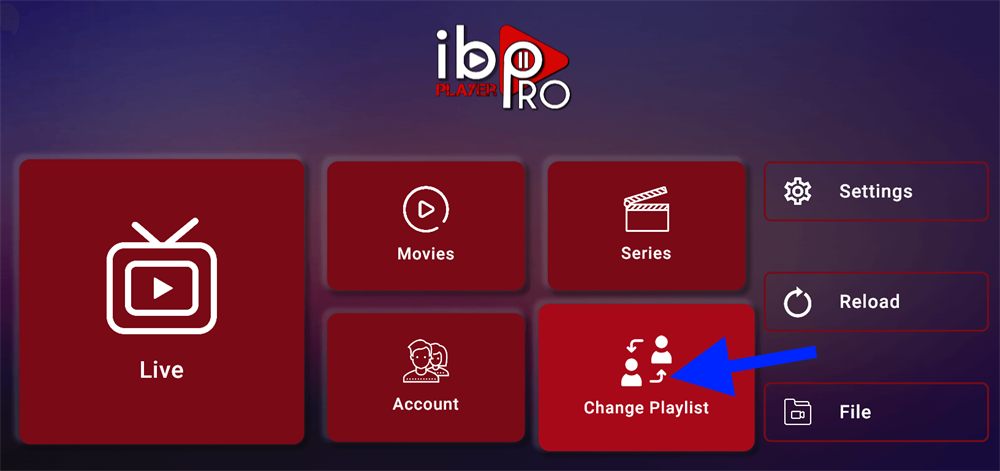
- Select Add Playlist.
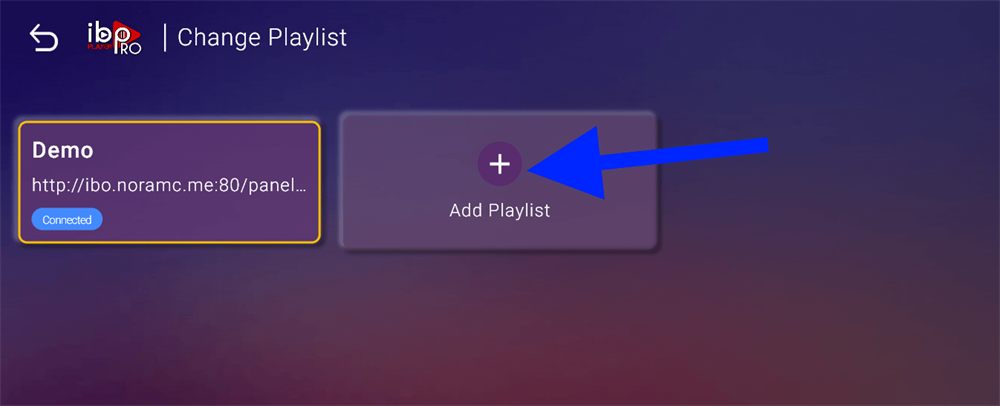
- Open the Xtream-Codes-API tab.
- Fill in the username, password and server URL from your Nexlivo welcome message — exactly as written, they're case-sensitive.
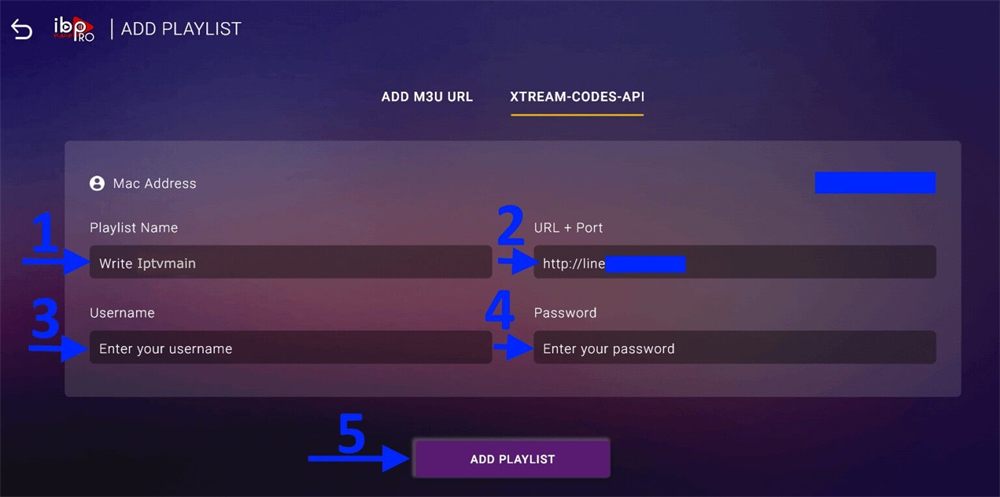
- Confirm with Add Playlist.
Playlists can also be managed from the developer's website by signing in with your MAC address and device key — handy for typing long URLs on a keyboard instead of a TV remote.
Step 5: Reload and watch
Back on the home screen, select Reload. The app pulls in your channel list and programme guide — first load takes a minute — and you're done.
If something is not working
- App says it's not activated — the activation hasn't been applied to this device's MAC yet. Double-check you sent the MAC/key from this installation (a reinstall can change the device key).
- Playlist added but no channels — select Reload, and if that doesn't cure it, remove and re-add the playlist checking every field for typos. See refreshing an IPTV playlist.
- Wrong or empty guide data — see fixing an IPTV EPG.
- Support is available 24/7 if you'd rather we did it with you.